✿
Getting things ready…
 AI Discussion Club
Getting things ready…

AI Discussion Club workshop
Build a website, one step at a time. You say what you want, and ChatGPT writes the code for you.
By the end you will have something that works, a web address you can send to anyone, and a safe backup of it.
Set aside about 45 minutes. You need a laptop for this one, not a phone.
ChatGPT is the assistant that does the building. Go to chatgpt.com and make an account.
Choose the Plus plan at $20 a month. The free one runs out partway through a project.
ChatGPT does all its building right inside the ChatGPT desktop app on your computer. There is no separate program to install.
Go to the page below and click the download button for your computer. Open the file when it finishes and follow the installer.
Then open the app and sign in with the account you just made.
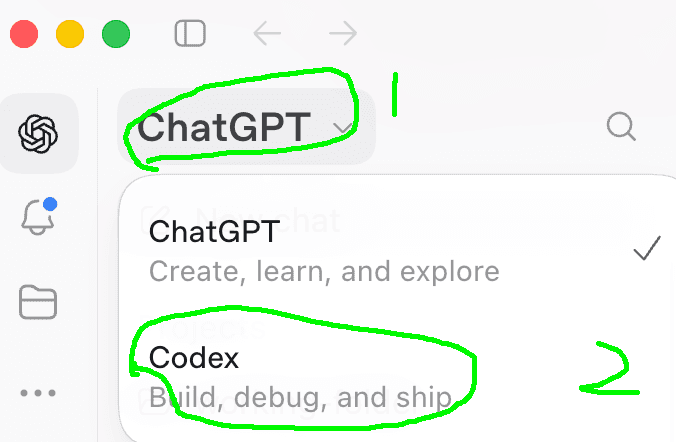
Codex is the builder that comes with ChatGPT. It is where you type what you want and watch ChatGPT make it.
At the top of the ChatGPT app, click the word ChatGPT to open the menu.
Choose Codex. That is the part that builds your app. You are already signed in, so there is nothing else to set up.
On a Mac, right-click the desktop and choose New Folder. On Windows, right-click and choose New, then Folder.
Go to your desktop and make a new folder. Name it chatgpt-workspace.
This is where your app will live. Everything ChatGPT builds goes in here.
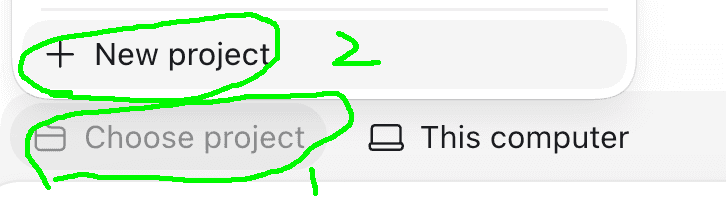
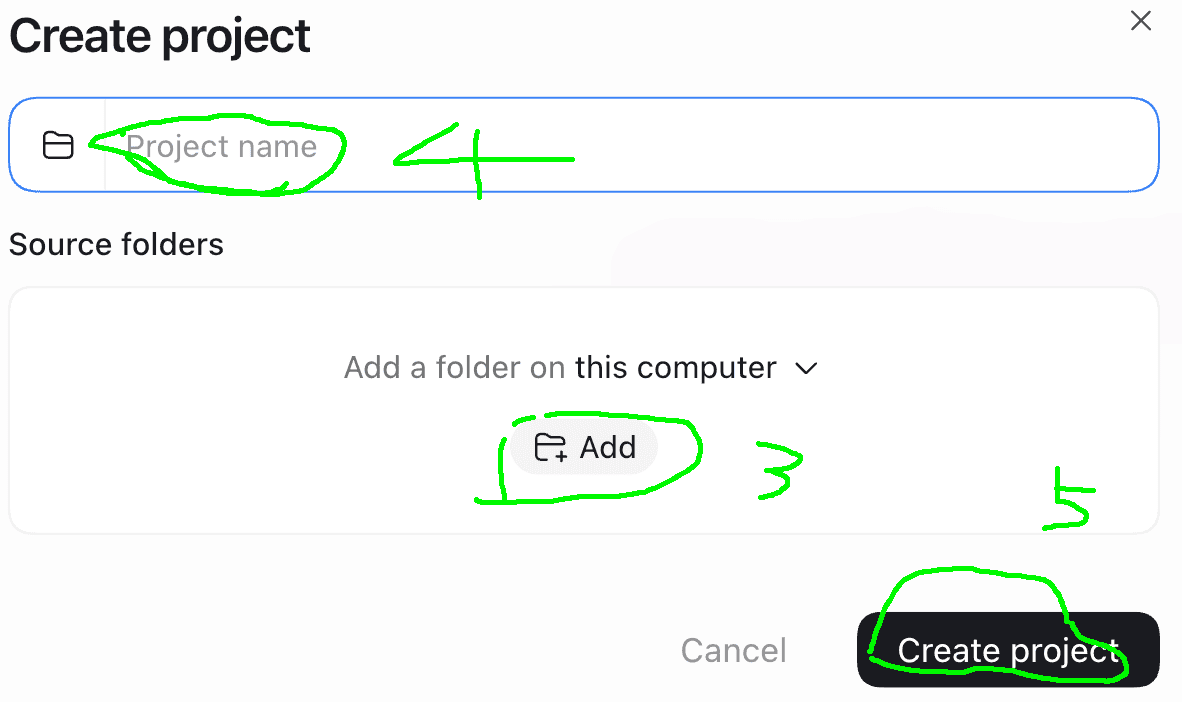
Leave This computer selected, so Codex works on your own laptop.
Tell Codex which folder to work in. Follow the numbers in the pictures.
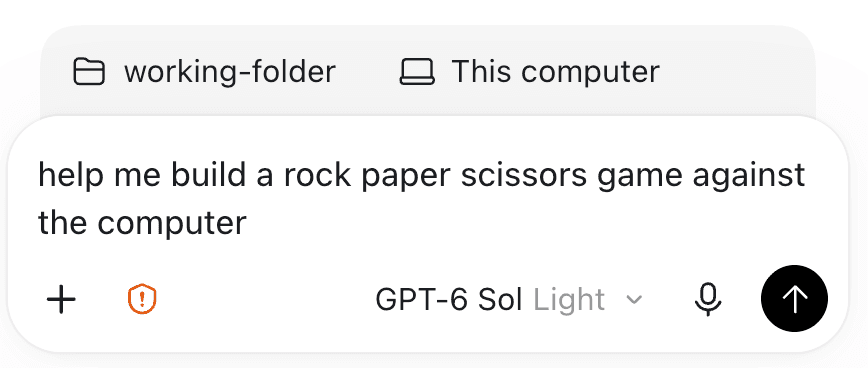
The more you say, the better it comes out. Mention who it is for and what it should look like.
Pick something below, or type your own. Then copy the line and paste it into Codex.
Codex writes the files and shows you what it is doing as it goes. It can take a few minutes, so let it finish.
help me build a birthday countdown page
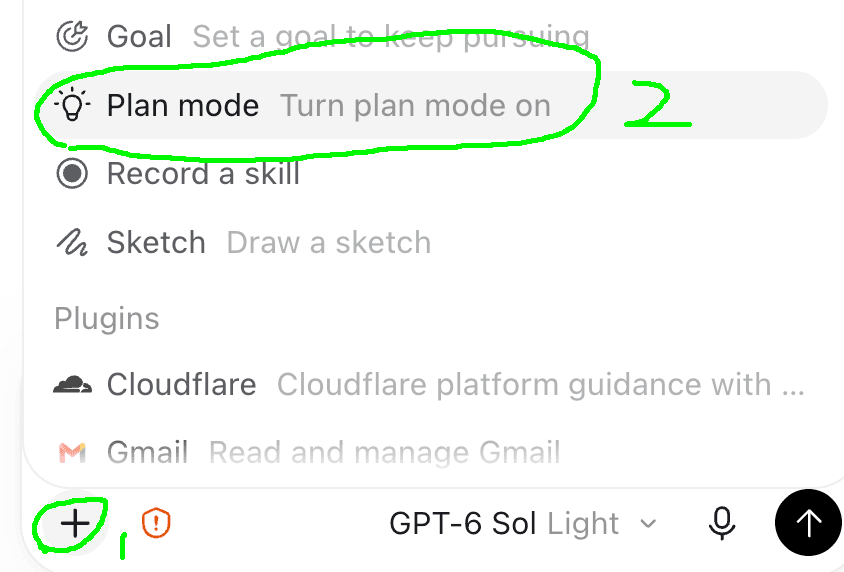
Codex asks before doing anything risky. You can leave those settings as they are to start.
Codex can plan before it builds. Click the + at the bottom left of the box where you type, then choose Plan mode. Or press Shift and Tab together.
Plan is for a big ask, like the whole app you just made. Codex looks around, works out what it is going to do, and shows you first, before it changes anything. Then it asks whether to go ahead.
For small changes, like making a button bigger or fixing a wrong word, skip Plan. Codex just gets on with it.
If you want ChatGPT to use your own photos, notes, or spreadsheets, drag those files into the chatgpt-workspace folder.
Then mention them in the chat, for example: use the photos in this folder.

Right now your app exists only on your own computer. Vercel is the service that puts it online so other people can open it.
Go to vercel.com and sign up. It is free to start.
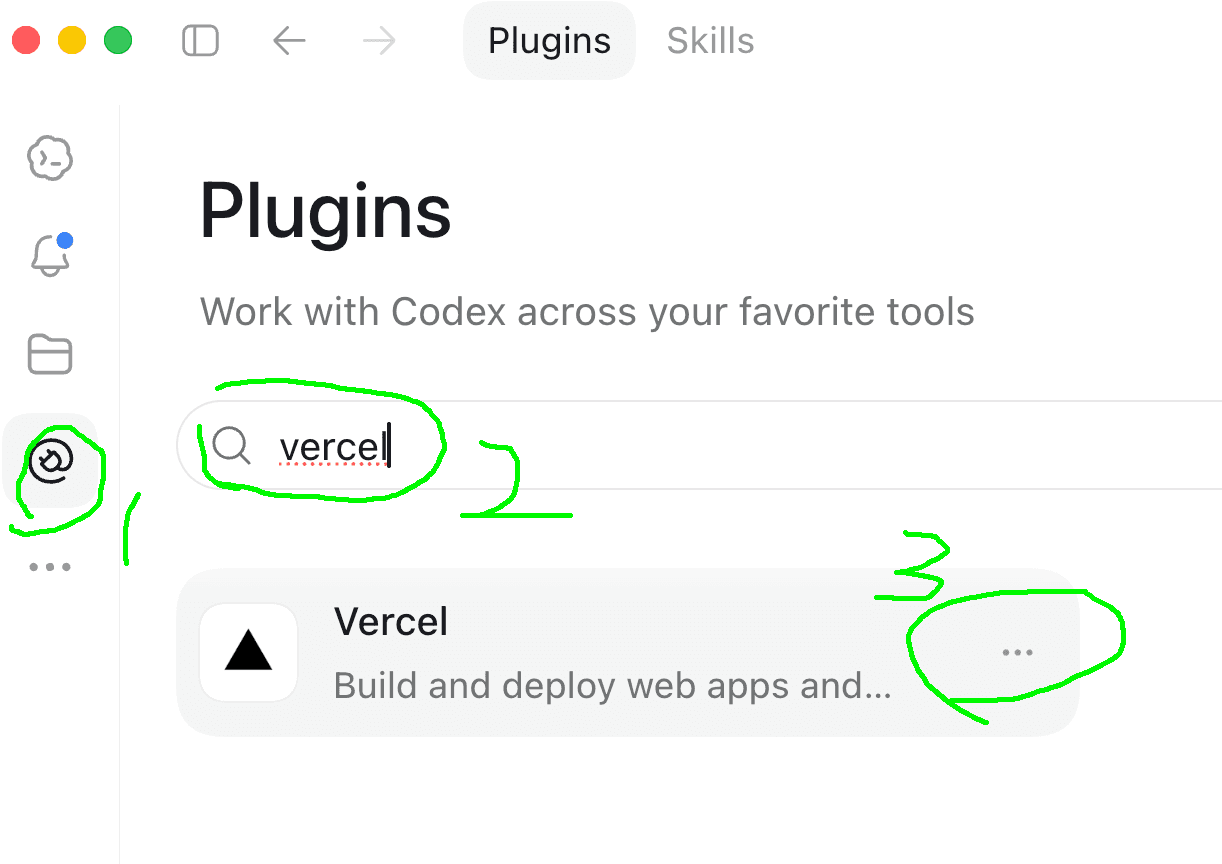
A plugin lets Codex use another service on your behalf. You never touch it directly.
A plugin lets Codex talk to Vercel for you. You add it once, from inside the ChatGPT app.
Paste this into Codex.
When it finishes, Codex hands you a web address. Open it. That is your app, live, and anyone you send the link to can use it.
help me publish my app to Vercel
You built an app and put it on the internet. That is the same loop professional builders use every day.
One thing left. Add your name and your app's web address to the workshop gallery, so the room can see what everyone built.

They meet in person, so you build alongside other people in the room.
You just shipped your first app. When you are ready for more, AI Build Club is where builders go next.
They cover the advanced pieces: adding a database, designing a real front end, letting people sign in, using GitHub, and building bigger, more capable apps. It is also where you swap ideas and pick up the newest techniques.
AI Build Club runs tailored workshops and boot camps for advanced builders and anyone who wants to upskill fast.
Everything from here is a bonus. Your app already works and it is on the internet.
The next few screens each give ChatGPT one extra power: a safe backup of your work, better web searching, a place to keep information, and a counter for how many people use your app.
Take the ones you want and skip the rest. Each is a one-time setup.
An MCP is a plug-in that gives Codex a new skill. That is all the word means.
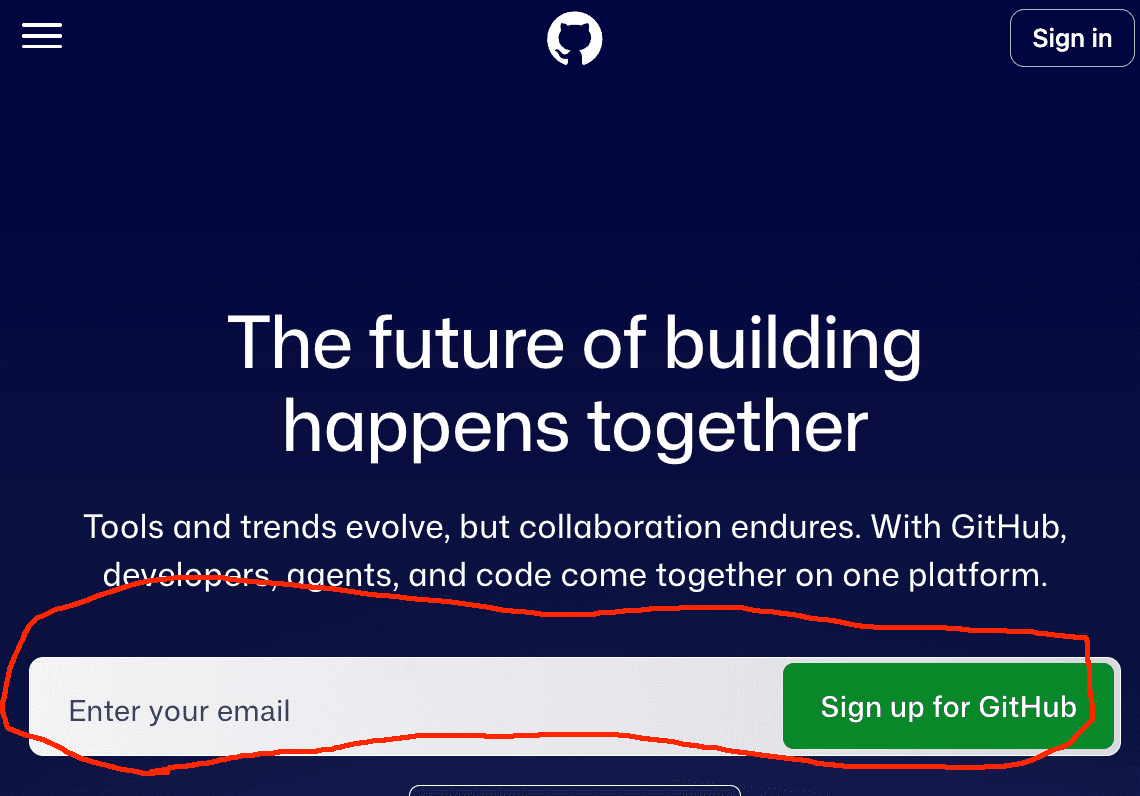
GitHub keeps a copy of your project online, along with every version of it. If your laptop dies, your work survives.
Go to github.com and sign up. The free account is plenty.
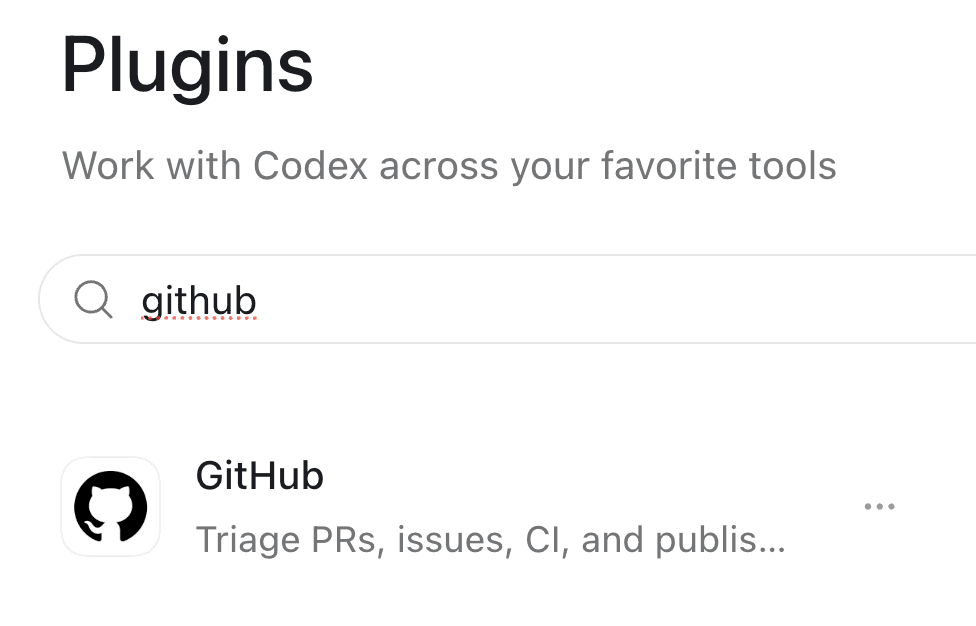
Add the GitHub plugin, the same way you added Vercel. Then Codex can save your project to GitHub for you.
A repository is just what GitHub calls a saved project.
Paste this in, and Codex does the rest.
It will ask whether you want it public, meaning anyone can look at it, or private, meaning only you. Either is fine. Pick private if you are unsure.
save my chatgpt-workspace project as a repository in github
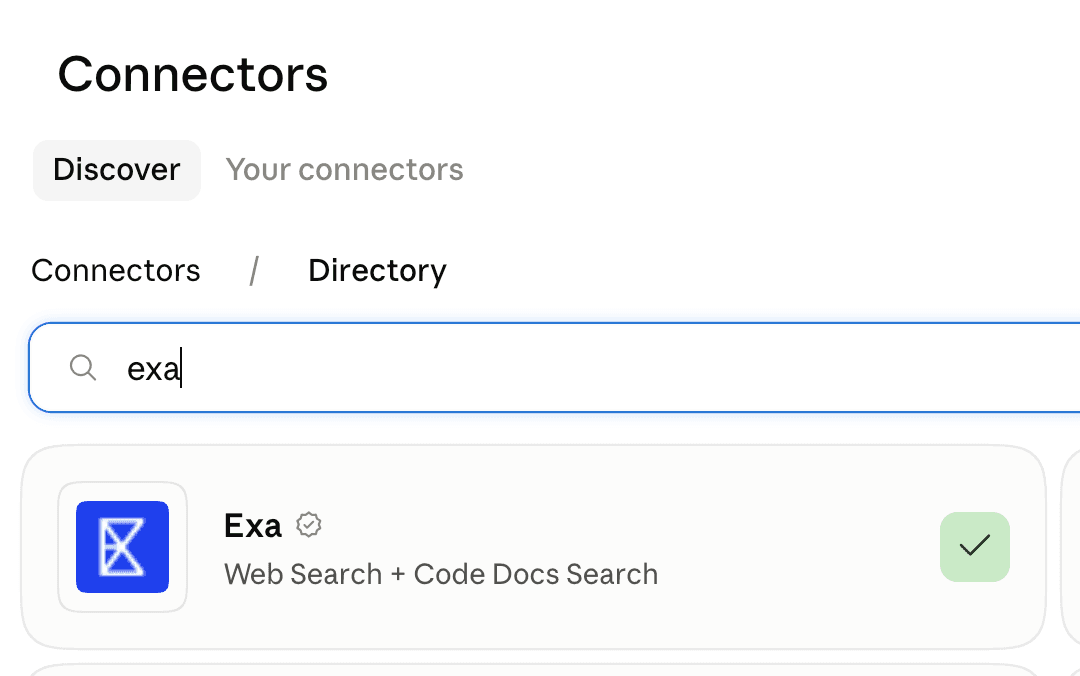
Codex can search the web for you. Exa makes it much better at finding the right page.
help me install exa mcp: https://docs.exa.ai/reference/exa-mcp
For when your app has to remember things after someone closes it, or people need to log in.
help me install firebase mcp: https://firebase.google.com/docs/ai-assistance/mcp-server
A counter for how many people opened your app and what they clicked.
help me install posthog mcp: https://posthog.com/docs/model-context-protocol